













Inventory Supplies Using a Hand-Held Computer: A Complete Deployment Checklist
Picture this: You've just spent thousands of dollars on brand-new hand-held computers, confident they'll revolutionize your warehouse inventory management. But the reality? Devices can't connect to Wi-Fi, scanners are sluggish, and employees have no idea how to use them. Day one of the rollout descends into chaos.
Over the years, I've witnessed plenty of failure scenarios just like this. The root cause is rarely the device itself — it's the lack of a systematic, well-thought-out deployment plan. From procurement to go-live, there are multiple stages: hardware configuration, software installation, network testing, employee training, and more. Skip any one of them, and the entire project risks delays or outright failure.
That's why we've prepared this complete deployment checklist for "Inventory Supplies Using a Hand-Held Computer." Whether you're a factory manager, warehouse supervisor, or operations director at a logistics center, this checklist will help you mitigate risks and ensure a smooth, efficient rollout.

Step 1: Hardware Preparation — Lay a Solid Foundation
Before distributing devices to employees, you must complete a series of hardware-level checks and preparations. Think of it as laying the foundation for a house — if the foundation is shaky, everything else suffers.
1. Unboxing and Initial Inspection
Don't rush to distribute devices. Instead, inspect every new hand-held computer one by one:
Visual check: Look for scratches on the screen, dents on the body, and loose buttons.
Functional test: Test touchscreen sensitivity, physical button feedback, scan engine speed and accuracy on barcodes, and speaker/microphone functionality.
Battery and charging: Check battery contacts for oxidation. Fully charge the battery, insert it into the device, and confirm the battery level displays correctly. Also test whether the charging cradle charges steadily.
2. Accessory Installation and Reinforcement
Warehouse environments are typically harsh, so devices need extra protection.
Install a protective case: Equip every device with a rugged case to cushion impacts from accidental drops.
Add a wrist strap: For operators who move frequently, a wrist strap prevents the device from slipping out of hand.
Screen protector: An anti-scratch screen protector is essential for extending screen life.
3. System-Level Updates
Before configuring software, make sure to complete OS-level updates first.
Firmware update: Connect to a stable Wi-Fi network, check for and install the latest system firmware and security patches from the manufacturer. This fixes known vulnerabilities and improves device stability.
Drivers: Ensure core hardware drivers — such as those for the scan engine and Wi-Fi module — are up to date.
Step 2: Software Configuration — Make the Devices Actually Work
With the hardware ready, the next step is to breathe life into the devices through software. The core focus here is standardization and security.
1. Deploy Core Business Applications
This is the most critical step. You need to install the WMS (Warehouse Management System) client or your custom inventory management app on every device.
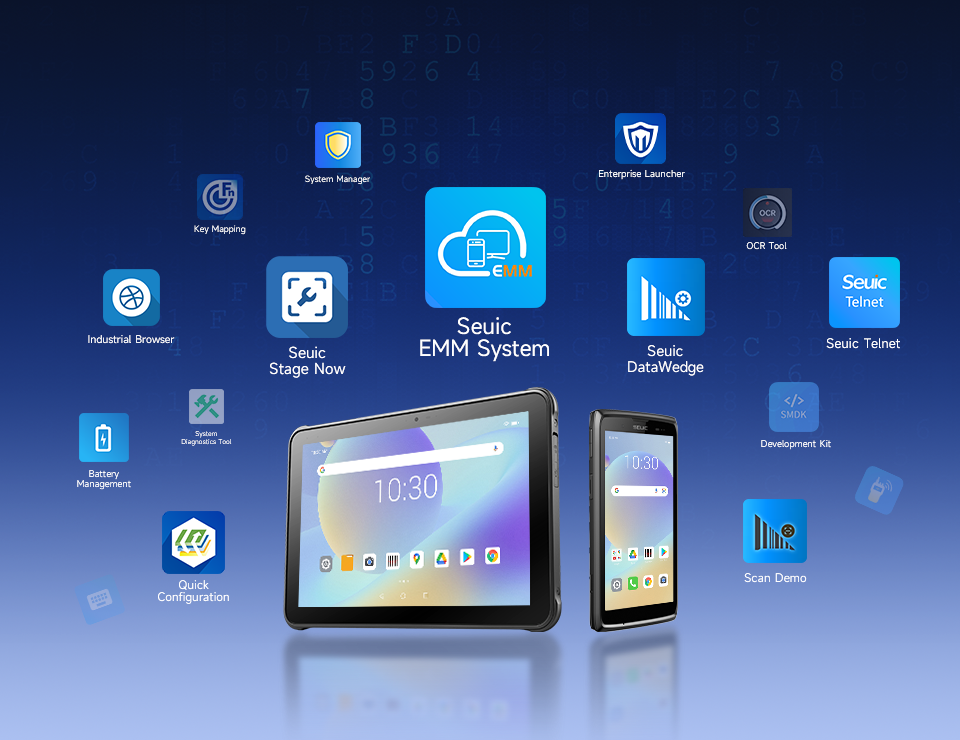
Installation method: Using an MDM (Mobile Device Management) platform for batch silent installation is the best practice — it saves significant time and effort.
Permission configuration: Ensure the app has necessary permissions, such as camera access (for scanning), storage access (for data caching), and network access.
2. Configure MDM Policies
MDM is the gatekeeper of enterprise data security. Through the MDM platform, you can uniformly configure the following policies:
Security baseline: Enforce complex unlock passwords (e.g., at least 8 characters with letters and numbers) and enable device encryption.
Application whitelist: Restrict devices to only work-related apps, preventing employees from downloading games or entertainment software that could affect productivity and network security.
Remote management: Enable "Find My Device" so you can locate, remotely lock, or even wipe data from a lost device.
Kiosk mode (single-app mode): If operators only use one inventory app, consider setting the device to Kiosk mode — locking the home screen and turning the device into a dedicated tool.
3. Network and Connectivity Configuration
A stable network connection is the lifeline of real-time inventory management.
Wi-Fi configuration: Pre-load your enterprise Wi-Fi SSID and password certificates so devices connect automatically on boot. For warehouse environments, prioritize the 5GHz band for higher speeds and lower interference.
VPN setup: If your WMS server is not on the local LAN, pre-configure VPN connection parameters and run connectivity tests.
Offline caching and sync: Certain areas of the warehouse may have signal dead zones. Be sure to test the app's offline mode: when the network drops, can data be cached locally? When the network recovers, does it auto-sync back to the server without conflicts? This is critical for maintaining business continuity.
Step 3: Pilot Run and Training — Moving from "It Works" to "They Know How to Use It"
Even after completing all the above configurations, you shouldn't roll out to everyone at once. A phased pilot run is essential.
1. Small-Scale Pilot
Select a pilot area: Choose a zone with moderate SKU count and relatively standardized workflows — such as a specific shelving area or a receiving/shipping dock.
Set a duration: Conduct an intensive one-week pilot.
Collect feedback: Assign someone to document all issues encountered during the pilot, including but not limited to: slow scanning, system lag, illogical workflows, confusing UI, etc. Hold brief daily debriefs and make adjustments promptly.
2. Tiered Employee Training
Don't expect a manual to solve everything. Training should be conducted in batches and by role.
Operator training (key focus):
Basic operations: Power on/off, unlock, connect to network.
Core tasks: Standard scanning workflows for receiving and putaway, picking, inventory counting, and stock transfers.
Exception handling: What to do when a barcode can't be read? How to respond to system errors?
Daily maintenance: How to charge properly, clean the screen, and replace the battery.
Team lead / supervisor training:
In addition to mastering all operator skills, learn how to monitor task progress from the backend and handle basic system issues.
3. Establish a Support System
IT support channel: Set up a WeChat group or DingTalk group where IT duty personnel can respond in real time during working hours to frontline employee requests.
Spare device mechanism: Prepare several fully configured backup devices. If a hardware failure occurs, swap it out immediately to minimize business disruption.
Common Issues and Troubleshooting
Even with thorough preparation, you'll inevitably encounter some common issues. Knowing the solutions in advance helps you stay calm under pressure.
| Problem | Possible Cause | Solution |
| Scanner not working | Incorrect focus, damaged barcode, driver not loaded | Check scanning distance and angle, clean the barcode, restart the app or device |
| Device cannot connect to Wi-Fi | Weak signal, wrong password, MAC address filtering | Check AP location, verify credentials, contact IT to add MAC to whitelist |
| Battery drains too fast | Too many background processes, screen brightness too high, aging battery | Close unnecessary apps, lower brightness, replace the battery |
| System lag / freeze | Insufficient memory, app compatibility issue | Clear background apps, force restart, contact the software developer |
Conclusion
Deploying "Inventory Supplies Using a Hand-Held Computer" is more than a hardware upgrade — it's a digital transformation of your business processes. It requires comprehensive planning and execution across hardware, software, networking, and people.
This checklist is not an endpoint — it's a starting point. It helps you avoid 80% of common pitfalls, but every organization's situation is unique. The key is to treat this checklist as a dynamic reference, iterating and optimizing based on your specific environment and feedback.
Related News

-
Portable Barcode Scanner Buying Guide
Product Updates | 2026.09.22Learn More
-

What Is RFID Meaning? Definition & Common Beginner Misconceptions
Product Updates | 2026.09.21Learn More
-

What Is RFID? A Complete Guide to Radio Frequency Identification: Definition, Working Principle & Applications
Product Updates | 2026.09.21Learn More
-

2D Barcode Scanner for Automotive DPM Traceability
Product Updates | 2026.09.20Learn More